

This guidance explains Metrc (New York) Support Bulletin NY_IB_0006 (distributed 1/14/2025, effective ongoing), created with the New York Office of Cannabis Management (OCM). It clarifies how New York licensees should create Metrc lab testing sample packages based on item category, and how to transfer those samples to a licensed testing facility for analysis.
What this New York Metrc bulletin covers
The bulletin focuses on three common tasks that directly affect day-to-day compliance in New York’s seed-to-sale workflow:
- Submitting a testing sample from a bulk package when the product is physically “ready-to-consume” but still tracked in Metrc as a bulk item category.
- Submitting a testing sample from a Final Form “- each” package (for products already tracked as individual retail units in Metrc).
- Creating a transfer to a testing facility after the sample package is created.
Key concept: item category drives how you sample in Metrc
In Metrc, the Item you select while using Submit for Testing matters because it determines the testing context (including which final form test batch is appropriate). The bulletin’s core message is: choose the sampling workflow that matches how the product is represented in Metrc and how it will be packaged/sold after testing.
Submitting a testing sample from a bulk package (ready for final form)
Use this workflow when the product is still in a bulk item category in Metrc, but the product is physically in a ready-to-consume final product form (meaning it requires no further processing and is ready for final packaging).
How to create the test sample package in Metrc
- Navigate to Packages and open the Active tab.
- Select the bulk source package you intend to test, then choose Submit for Testing.
- In the Submit for Testing window, complete the required fields, including:
- New Package UID for the testing sample.
- Location where the sample will be stored in your facility.
- Item selection: choose the Final Form – Each item that the product will be packaged into after testing (for example, a 3.5g flower “- each” item).
Metrc will prompt you to deduct the sample quantity from the source package and add it to the new testing sample package. After you select the appropriate final form lab test batch (as required for the category), submit the action to create the sample package.
Operational implication: split bulk packages before sampling for multiple final form SKUs
The bulletin notes a common operational pitfall: if one bulk package will be packaged into multiple different final form “- each” items (for example, 1g, 3.5g, and 7g flower units), you should repackage/split the bulk inventory into separate Metrc packages allocated to each final form item before creating testing samples. Practically, this helps your team keep testing, packaging, and downstream retail labeling aligned to the correct item/SKU pathway.
How to recognize a testing sample package
In Metrc, testing sample packages are visually identified with a graduated cylinder icon. This is useful for quickly confirming you selected the correct package when building the lab transfer.
Preventing stuck “Testing in Progress” status
The bulletin warns that if multiple testing samples exist for the same context, the overall testing status may remain Testing in Progress until all associated results are recorded. If your team accidentally creates duplicate sample packages, the recommended fix is to discontinue the duplicate testing sample so the status can resolve correctly once the lab reports results.
Submitting a testing sample from a Final Form “- each” package
Use this workflow when the source inventory is already in a Final Form “- each” item category in Metrc (typical for packaged units). The bulletin also notes this workflow can be used for electronic sampling for distributors during a beginning inventory period, where applicable.
How to create the test sample from a “- each” source package
- Navigate to Packages and open the Active tab.
- Select the final form “- each” source package, then choose Submit for Testing.
- Enter the required information, including:
- New Package UID for the testing sample.
- Location where the sample is stored.
- For the Item field, select the Same Item option so the testing sample remains in the same “- each” item category as the source package.
As with bulk sampling, you will deduct the sample quantity from the source package and add it to the new testing sample package, then select the correct final form lab test batch required for that product category before submitting.
Status and duplicate-sample impact
The same day-to-day compliance risk applies here: if duplicate testing samples are created, discontinue duplicates to avoid prolonged Testing in Progress status after lab reporting.
Creating a Metrc transfer to a testing facility (New York)
Once the testing sample package is created, New York operators must transfer the sample to the testing facility for analysis using a Metrc transfer record.
How to register the transfer in Metrc
- Go to Packages > Active.
- Select the testing sample package (confirm using the graduated cylinder icon), then choose New Transfer.
- In the New Transfer window, complete the required transfer details, including:
- Destination facility (the testing lab).
- Planned route.
- Transporter license number and phone number.
- Driver and vehicle information.
- Transfer type: select Transfer to Testing Facility.
The sample package should populate into the transfer. Select Register Transfer to create the outgoing transfer record. To confirm it’s registered, view it under Transfers (Outgoing).
Practical implications for daily cannabis operations
This bulletin is operationally important because Metrc testing entries affect more than compliance status—they affect packaging timelines, sales readiness, and reconciliation accuracy:
- Sampling against the correct item category reduces downstream corrections when you package, label, and sell the product.
- Splitting bulk inventory intentionally (when one bulk lot will become multiple final form SKUs) supports cleaner production planning and simpler audits.
- Eliminating duplicate samples quickly helps ensure Metrc reflects an accurate testing state, preventing confusion when product is ready to be released for sale.
- Accurate testing transfers ensure chain of custody is clear between your facility and the lab.
Labeling and Retail ID considerations: where Distru fits
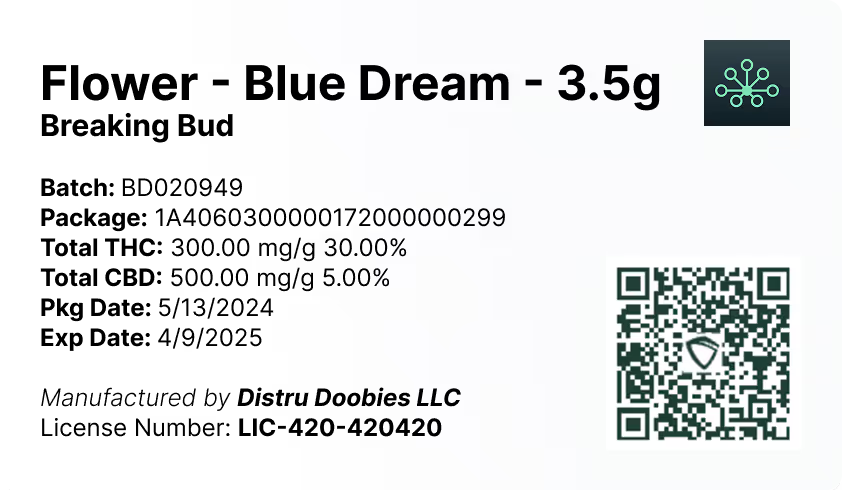
While this bulletin is about creating and transferring testing samples, it connects directly to what happens next: once product passes testing, operators typically move quickly into final packaging and labeling. For teams looking to tighten post-test execution, DistruLabels is a 100% free tool for creating compliant packaging and retail labels, and it can help support Metrc Retail ID compliance by producing consistent, scannable labels that match how items and packages are tracked in Metrc.
For larger operators who need broader system control beyond labeling—such as end-to-end inventory, manufacturing workflows, purchasing, sales, and compliance-ready reporting—DistruERP is Distru’s comprehensive Cannabis ERP platform designed for complete supply chain management.
Where Metrc directs New York licensees for help
Metrc points users to the following resources for additional support and training related to testing samples and beginning inventory workflows:
- Metrc Support Portal: https://support.metrc.com
- Metrc Learn training (including Beginning Inventory content): https://learn.metrc.com
- Metrc Expert widget inside the Metrc application for testing tips and best practices.
For first-time portal access, Metrc indicates you’ll need your username, the applicable state, your facility license number, and a valid email to set a password.


